
Uninstall App Using Webuzo panel
This tutorial will demonstrates you how to remove a various system apps through Webuzo.
Procedure
Go to Admin Panel > Apps > Installed Apps section.
Installed Apps:
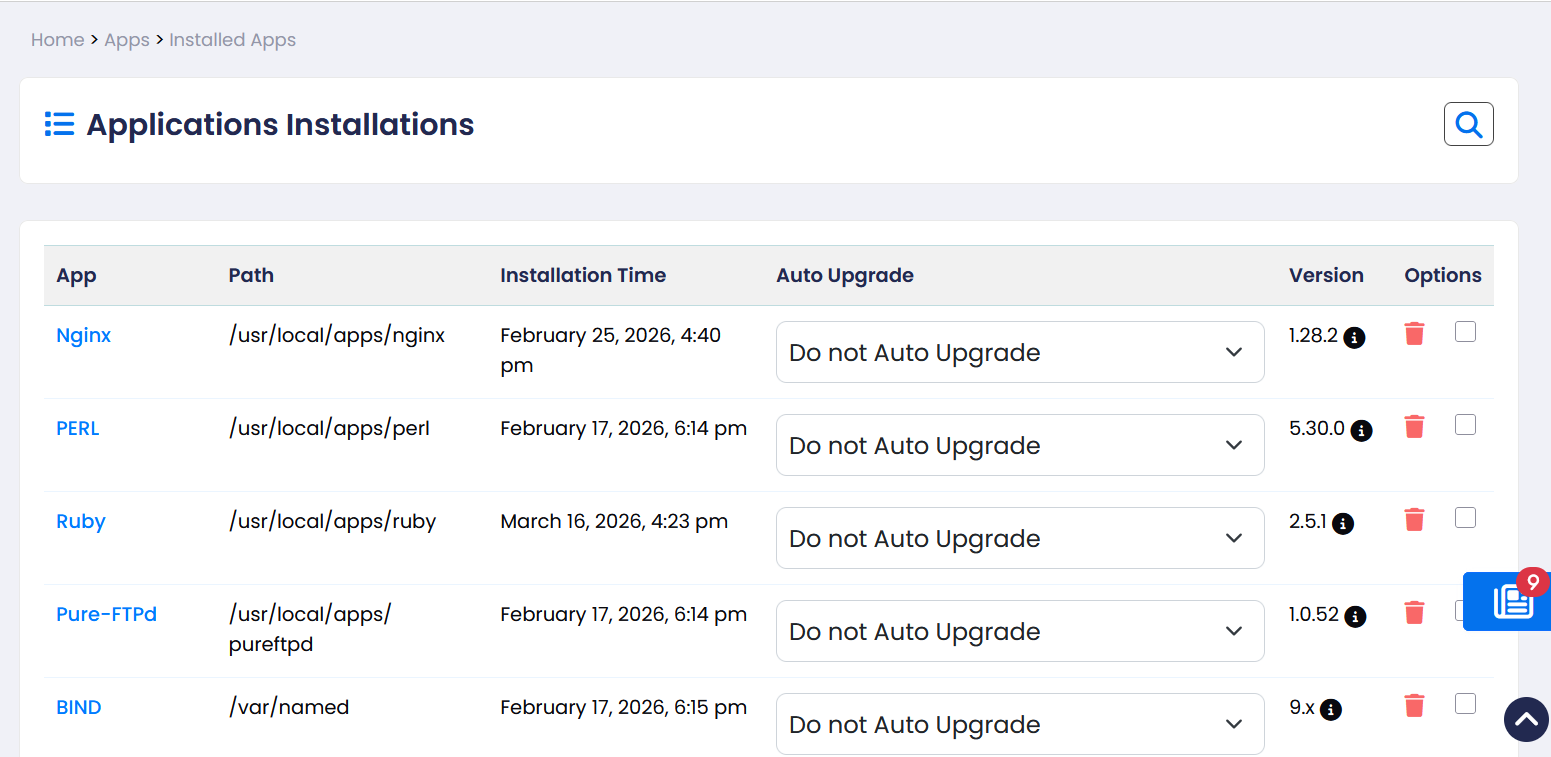
After successfully installing your apps, you can view the list of application installations on the Admin Panel > Apps > Installed Apps page.
Within this section, you'll find multiple columns showcasing essential information about your apps, including installation app path, installation time, and version details.
After successfully installing your apps, you can view the list of application installations on the Admin Panel > Apps > Installed Apps page.
Within this section, you'll find multiple columns showcasing essential information about your apps, including installation app path, installation time, and version details.
Uninstall App:
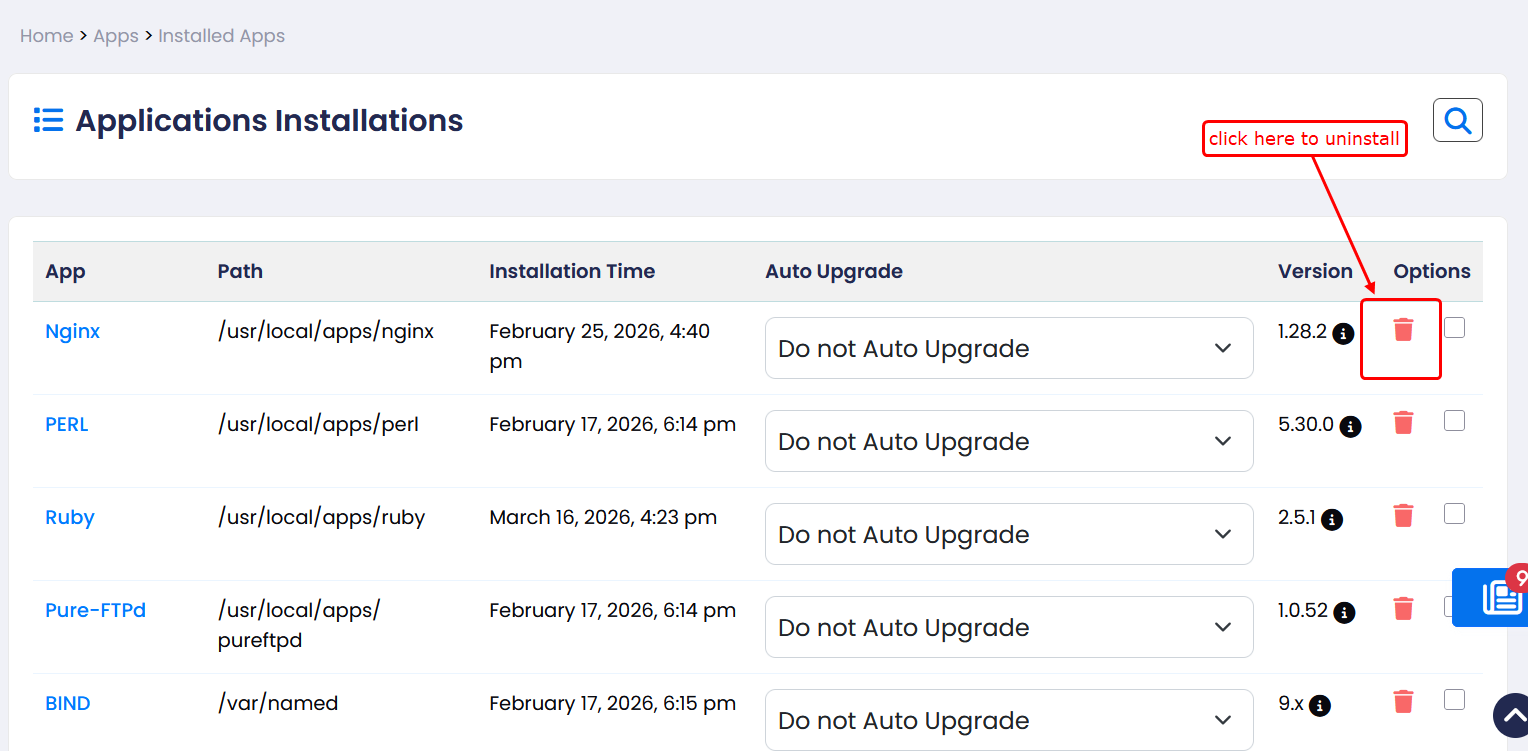
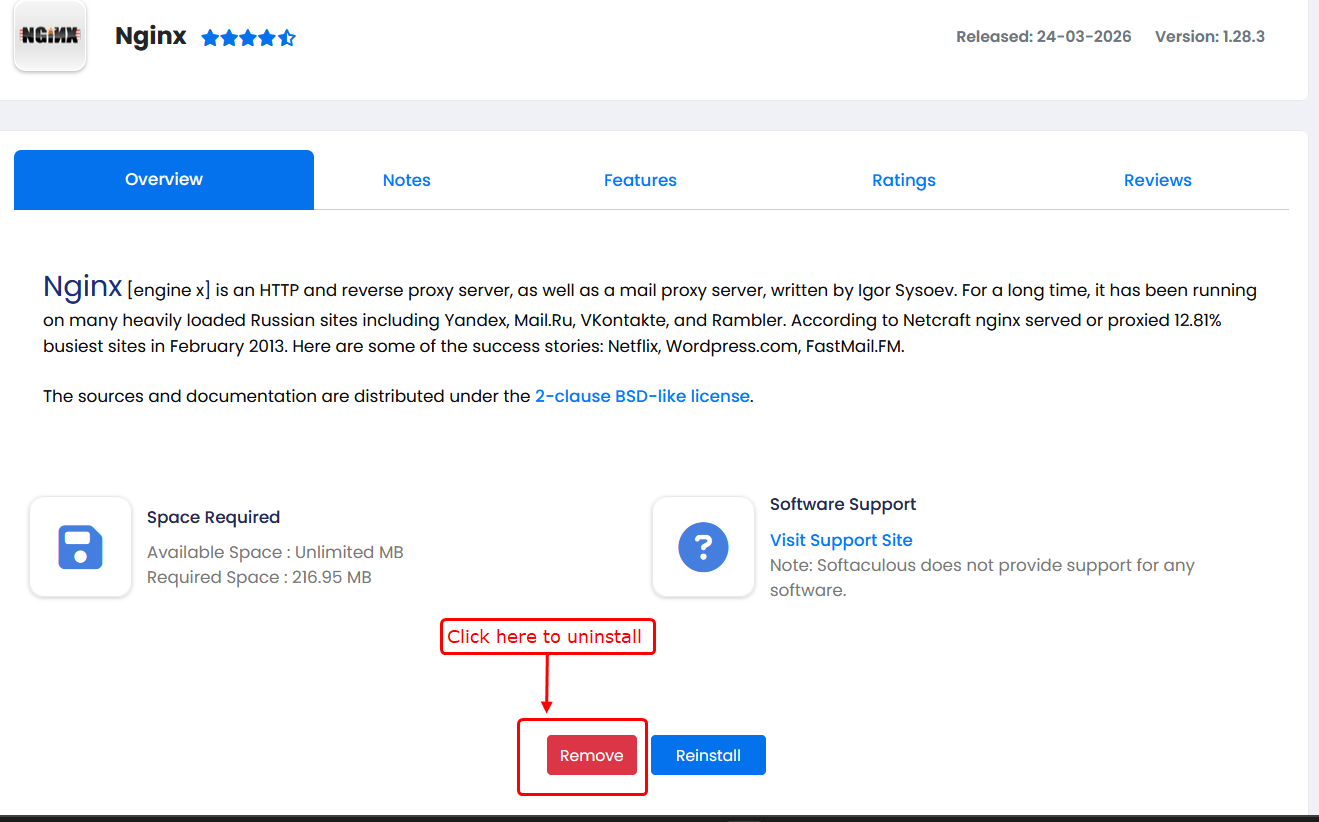
To uninstall an app, simply click on the delete icon located in the respective app column on the installed app page; this action will redirect you to the app installation page. after click remove button to uninstall.
To uninstall an app, simply click on the delete icon located in the respective app column on the installed app page; this action will redirect you to the app installation page. after click remove button to uninstall.
You will be redirected to remove page.
Uninstall App Using CLI
Use the following command to remove the system application.
webuzo --removeapp --app=gitIn the above command the first parameter should be
- --ra
- --app_remove
- --removeapp
as this parameter will initiate the remove function.
app=git - This is the application installation name for GitHub installation.