
Overview
This guide shows you how to configure essential OpenLiteSpeed
settings in Webuzo to improve server performance and management. symbolic link access,
log level control, and auto-indexing, if you have NAT configuration please enable the No ip in virtual host, Additionally, Enable Gzip compression to improve load times.
- Navigate to the Home > Apps > OpenLiteSpeed Settings.
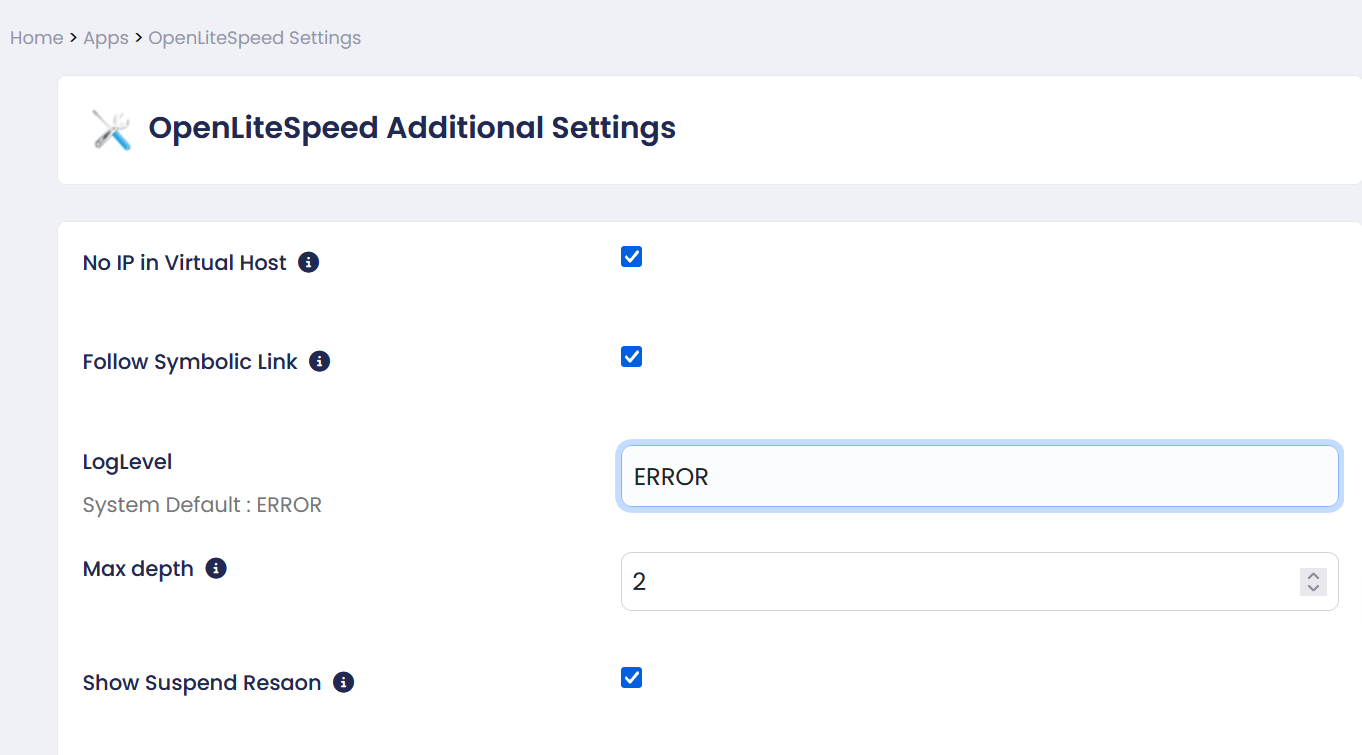
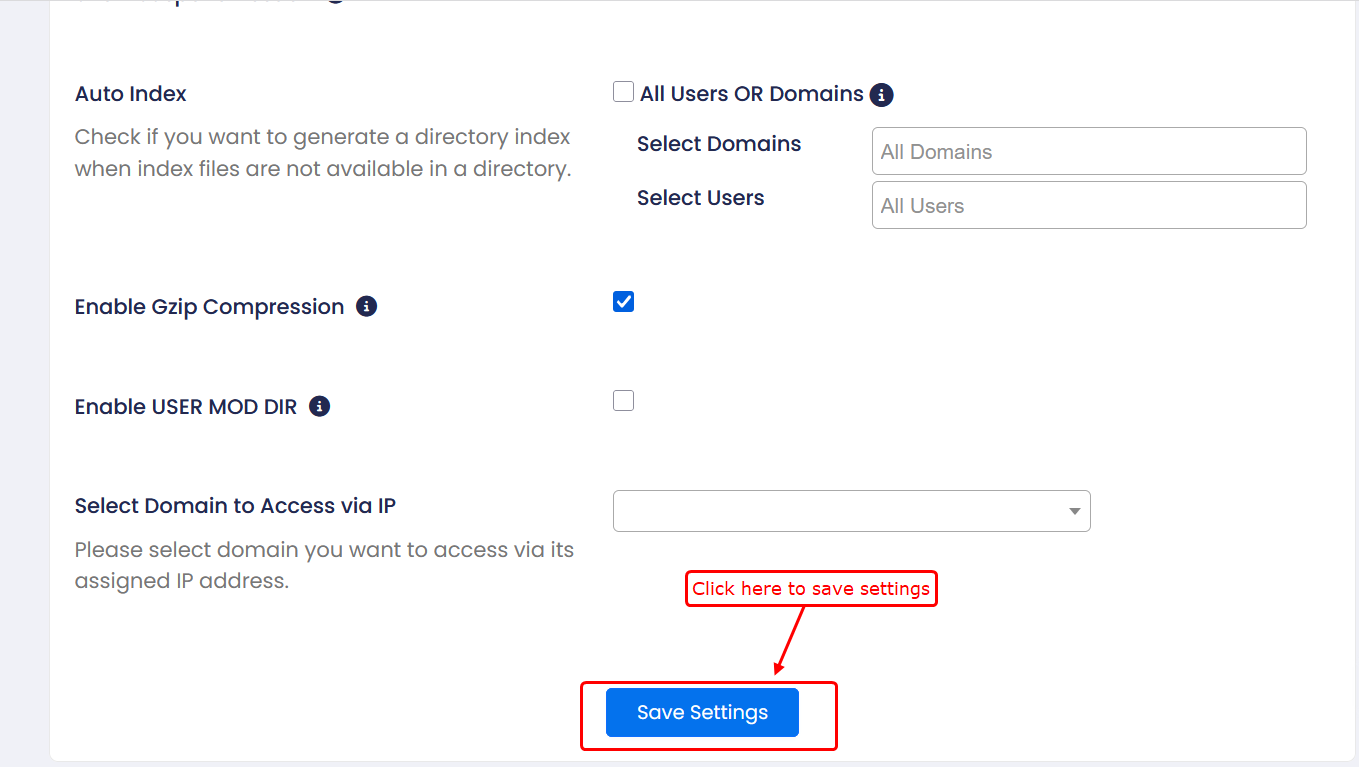
1)No IP in Virtual Host :-
Prevents the server IP address from being used in virtual host configurations, improving security and restricting direct IP access.
2)Follow Symbolic Link :-
Allows the server to follow symbolic links within directories. Disabling this can improve security by preventing access to unintended files.
3)LogLevel :-
Defines the level of logging for OpenLiteSpeed. It controls how much detail is recorded in the logs.
Available options:
-
ERROR :- Logs only critical issues that affect functionality. (Default)
-
WARNING :- Logs potential problems that may not immediately affect functionality
-
NOTICE :- Logs normal but significant events
-
INFO :- Logs general informational messages about server activity
-
DEBUG :- Logs detailed information useful for troubleshooting and debugging
4)Max depth :-
Defines how many directory levels insidepublic_htmlthe server scans for.htaccessfiles (default is 2).
5)Show Suspend Reason :-
Displays the reason for account suspension when a suspended site is accessed.
6)Auto Index :-
Generates a directory listing when no index file (likeindex.phporindex.html) is present in a directory.- All Users OR Domains :-
- Select Domains :-
Allows you to select specific domains where the setting will be applied. - Select Users :-
Allows you to select specific users for applying the configuration.
7)Enable Gzip Compression :-
Compresses content before sending it to the client, improving load speed and reducing bandwidth usage.
8)Enable USER MOD DIR :-
Allows access to user directories via URLs like/~username.
9)Select Domain to Access via IP :-
Allows you to choose a domain that can be accessed directly via its assigned IP address.
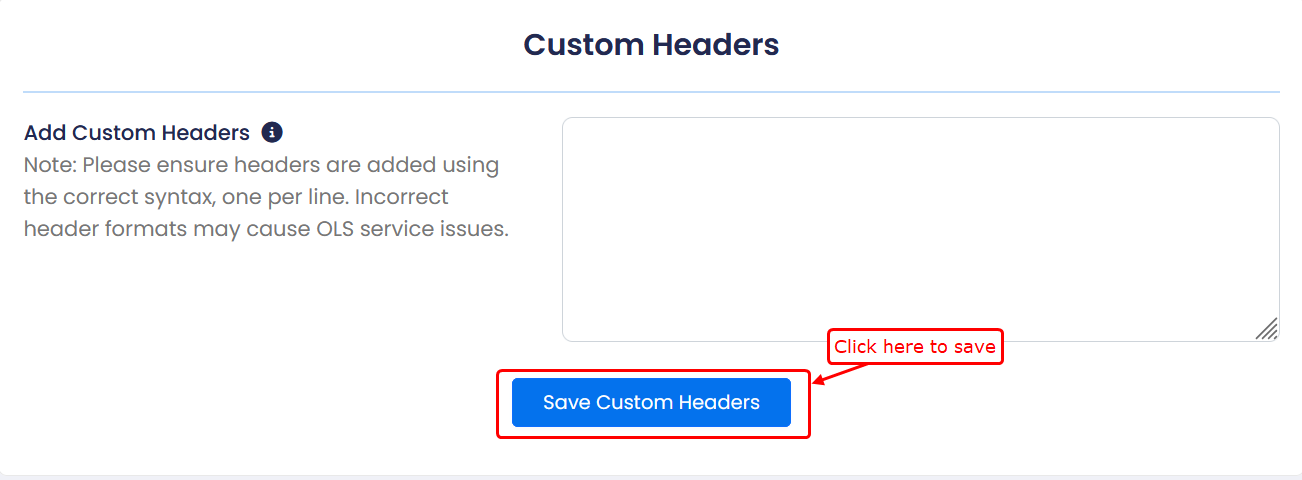
- Add Custom Headers :-
Enter headers in the correct syntax, one per line (e.g., Header set Name value or append Name value).
- Examples :-
append Cache-Control no-store
Header set My-header cust_header_val
Note: