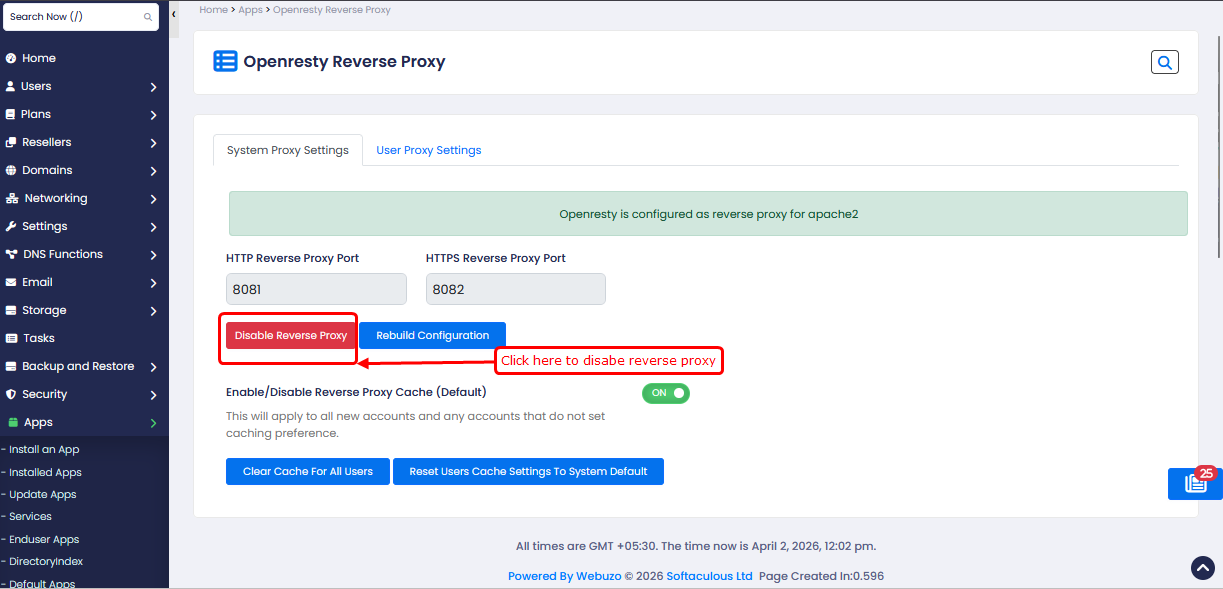
overview
This guide explains how to enable OpenResty as a Reverse Proxy.
OpenResty is configured as a reverse proxy to handle incoming HTTP and HTTPS traffic, forwarding dynamic requests to your backend servers (e.g., Apache). It serves static content directly, improving performance and reducing backend load.
This setup allows OpenResty to manage traffic efficiently while backend servers focus on processing dynamic content.
Requirements
Enable OpenResty Reverse Proxy
Set the default server as the OpenResty server.
To enable OpenResty reverse proxy, go to Admin panel >OpenResty Reverse Proxy.
You can set HTTP/HTTPS Reverse proxy ports.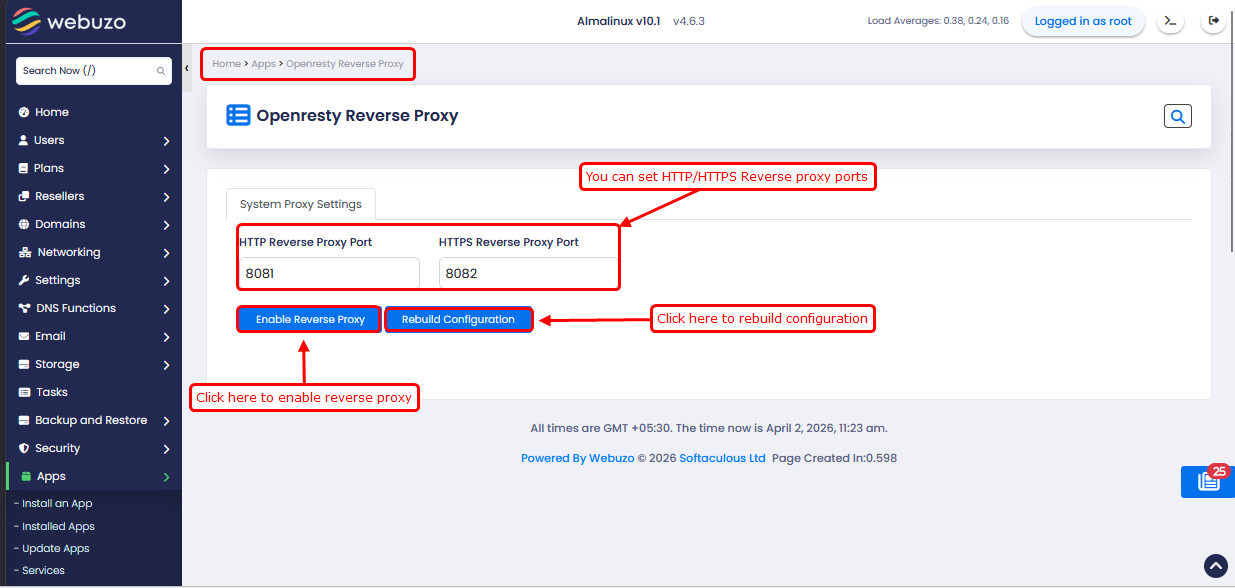
After clicking the Enable Reverse Proxy button, the following page will appear.
Here you can set a reverse proxy cache for users. Also, you can clear the cache for all users.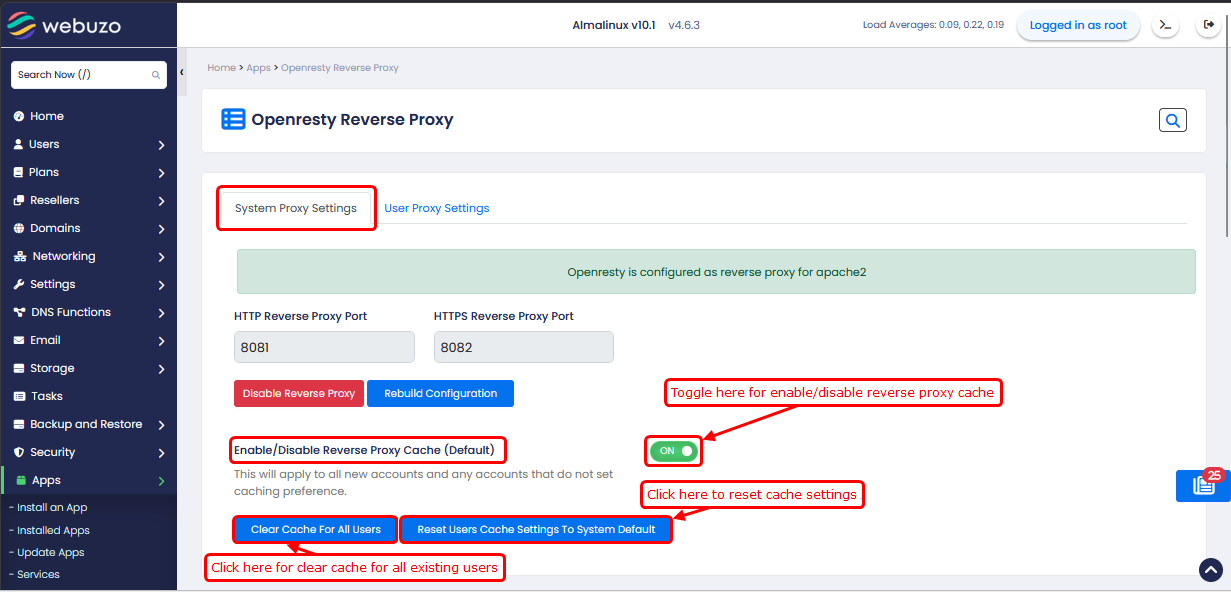
Enable reverse proxy for particular users
If you want to enable/disable OpenResty reverse proxy and reverse proxy cache for a particular user, click on User Proxy Settings
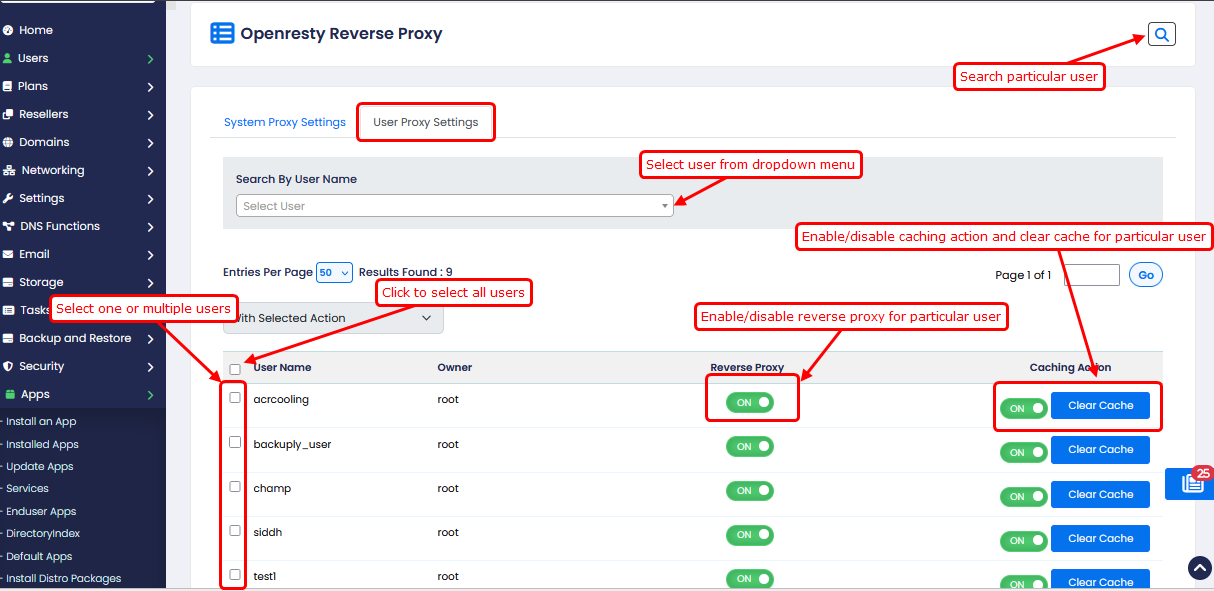
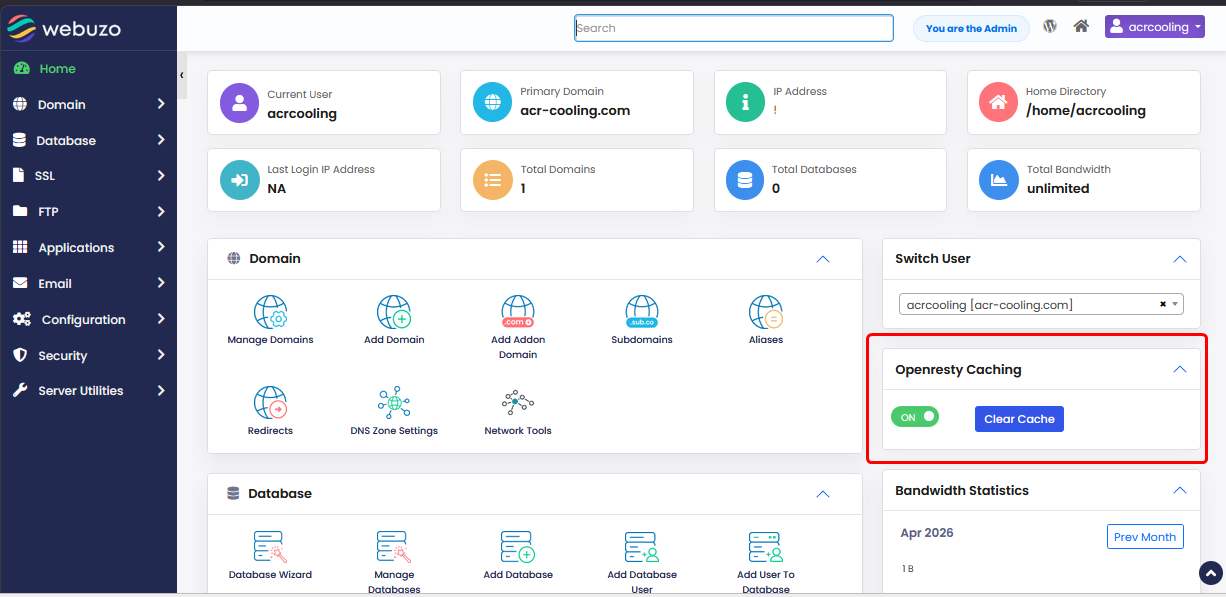
You can also enable/disable cache and clear cache from the end-user home panel.
Once you enable the OpenResty reverse proxy, you cannot change the web server until it is disabled. To change the web server, you need to disable the reverse proxy first from the admin panel > OpenResty Reverse Proxy Wizard.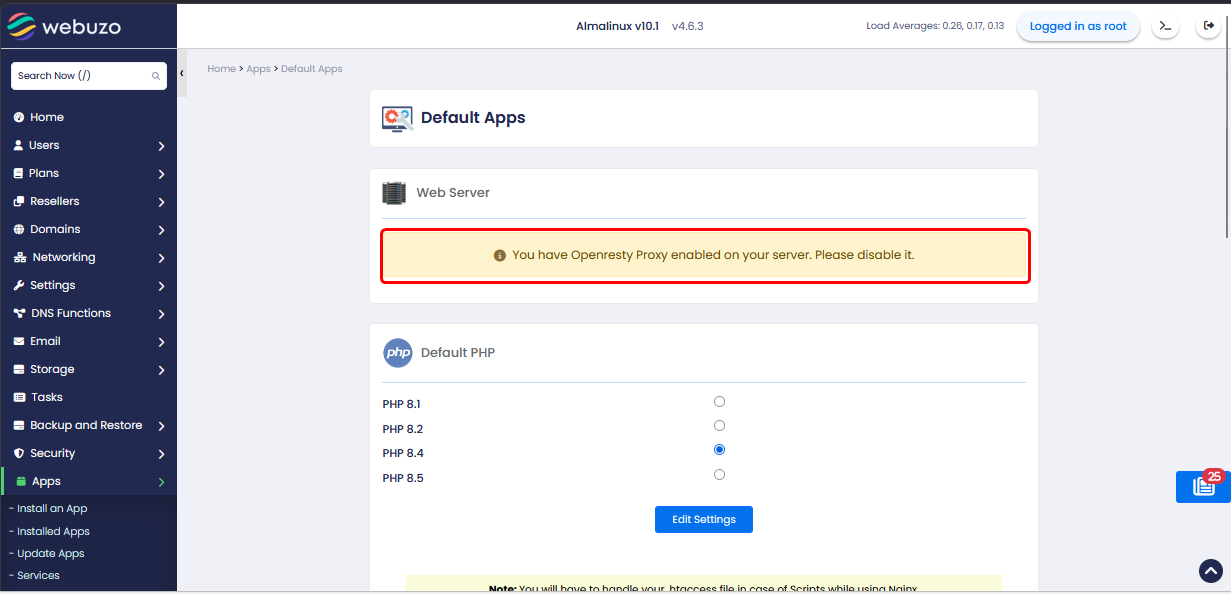
Disable OpenResty Reverse Proxy