
Delete User
This command will show you how to delete users via Command Line.
For a single user you can use below-mentioned command,
webuzo --delete_user --user=USERNAME
For multiuser, you can pass comma-separated users.
webuzo --delete_user --user=USERNAME1,USERNAME2
------------------------------------------------------------------------------------------------------------------------
Single Sign On
Description
The Single Sign On feature generates a temporary session to authenticate in Webuzo admin or enduser panel by just executing command from root command line interface.
Steps :
Sample CLI Command
For a root login you can use below-mentioned command.
webuzo --ssoFor a end user login you can use below-mentioned command.
webuzo --sso --user=USERNAMEFor a admin reseller login you can use below-mentioned command.
webuzo --sso --admin=RESELLER_NAME------------------------------------------------------------------------------------------------------------------------
Webuzo Version
This command gives you the Webuzo version installed on your server.
webuzo -vOR
/usr/local/emps/bin/php /usr/local/webuzo/cli.php --version------------------------------------------------------------------------------------------------------------------------
Webuzo License Details
This command shows you the Webuzo license details
webuzo -lSample Output
Webuzo License : webuzo-XXXXX-XXXXX-XXXXX-XXXXX
Type : Premium
Plan: Professional
Num Users : 15
Expires (DD/MM/YYYY) : 07/12/2023
License IP : XXX.XX.XXX.XXX
------------------------------------------------------------------------------------------------------------------------
Webuzo Upgrade
The following CLI command updates Webuzo to the latest version.
By default auto updates are enabled. If you you have disabled auto updates you can upgrade Webuzo manually using this command
webuzo --update------------------------------------------------------------------------------------------------------------------------
Webuzo Custom Ports
Description
This guide will show you how to add custom for Webuzo panel ports via Command Line
The following CLI command is used to add custom ports for Webuzo Admin and End User panel
For Example:
Admin port SSL - 3005 and Enduser port SSL - 3003
Admin port Non-SSL - 3004 and Enduser port Non-SSL - 3002
Command
webuzo --add_custom_ports --admin_ssl=3005 --admin=3004 --enduser_ssl=3003 --enduser=3002Note : Webuzo will still continue to run on the default ports and will additionally run on your custom ports as well.
Note :
If you are unable to access Webuzo with your custom ports after
executing the above command please make sure your custom ports are
allowed in Firewall.
------------------------------------------------------------------------------------------------------------------------
Suspend User
This guide will show you how to Suspend users via Command Line.
Command
webuzo --suspend_user --user=usernameParameters
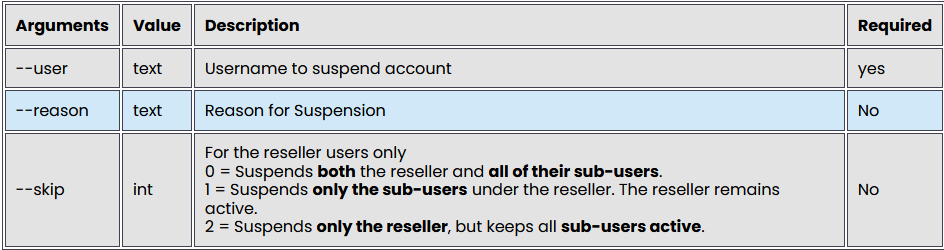
To suspend Non Reseller Users
webuzo --suspend_user --user=username --reason='reason'To Suspends both the Reseller and all of their sub-users.
webuzo --suspend_user --user=username --reason='reason' --skip=0To Suspends only the sub-users under the reseller. The Reseller remains active.
webuzo --suspend_user --user=username --reason='reason' --skip=1To Suspends only the Reseller , but keeps all sub-users active.
webuzo --suspend_user --user=username --reason='reason' --skip=2Output
Progress: 100: The user has been suspended
------------------------------------------------------------------------------------------------------------------------
Unsuspend User
This guide will show you how to Unsuspend the Suspended users via Command Line.
Command
webuzo --unsuspend_user --user=usernameParameters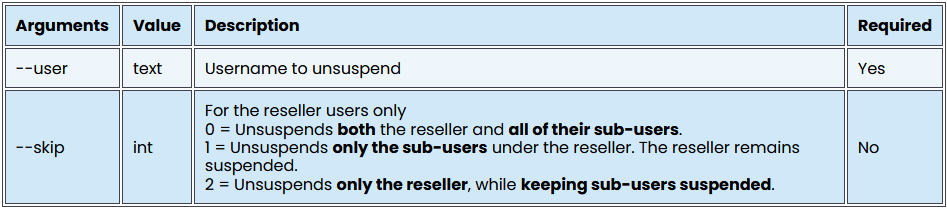
To unsuspend Non Reseller Users
webuzo --unsuspend_user --user=usernameTo Unsuspends both the reseller and all of their sub-users.
webuzo --unsuspend_user --user=username -skip=0To Unsuspends only the sub-users under the reseller. The reseller remains suspended.
webuzo --unsuspend_user --user=username --skip=1To Unsuspends only the reseller, while keeping sub-users suspended.
webuzo --unsuspend_user --user=username --skip=2Output
Progress: 100: The user has been unsuspended
------------------------------------------------------------------------------------------------------------------------
Delete Domain
This guide will show you how to Delete Domain via Command Line.
Command
For a single domain you can use below-mentioned command,
webuzo --delete_domain --domain=domain.comFor multi-domain, you can pass comma-separated domains
webuzo --delete_domain --domain=domain1.com,domain2.comOutput
The domain - domain1.com was deleted successfully
The domain - domain2.com was deleted successfully
------------------------------------------------------------------------------------------------------------------------
Rebuild DNS Zones
Description
This guide will show you how to Rebuild DNS Zone files using command line.
The following command are used to rebuild the DNS zone files for all domains. It will delete the duplicate zone entries and Repair the DNS Zones file.
Command
webuzo --bind_rebuild_allOutput
Bind Rebuild Done
------------------------------------------------------------------------------------------------------------------------
Rebuild Webuzo Database
Description
This guide will show you how to Rebuild Webuzo database via Command Line.
The following command Rebuilds Webuzo database cache which is used to better performance. If you see any user/domain or any other details missing in your Webuzo panel you can use this command.
Note: This command is executed daily via CRON
Command
webuzo --wdb_rebuildOutput
Webuzo DB Rebuild Done
------------------------------------------------------------------------------------------------------------------------
Rebuild Virtual Hosts
Description
This guide will show you how to Rebuild the web server VirtualHost for all domains via Command Line.
The following CLI command is used to rebuild the web server VirtualHost configuration for all the users and domains.
Command
webuzo --rebuild_vhostsOutput
vhost Rebuild Done
------------------------------------------------------------------------------------------------------------------------
Repair Webuzo Binary
Description
This guide will show you how to Repair Webuzo binary via Command Line.
The following CLI command is used to recompile the webuzo binary If the binary is not working
Command
Execute the following command to trigger the repair utility:
webuzo --repairOutput
Done !
Webuzo Binary Repair Done
------------------------------------------------------------------------------------------------------------------------
Rebuild Webuzo Cronjobs
Description
This guide will show you how to Rebuild Webuzo Cronjobs via Command Line.
The following CLI command is used to Rebuilds the Webuzo cronjobs required by the panel like cron.php, cronh.php, etc.
NOTE : This command does not make any changes to user cronjobs or any other cron jobs that were not added by Webuzo.
Command
webuzo --webuzo_cron------------------------------------------------------------------------------------------------------------------------
Reissue Webuzo Service Certificates
Description
This guide will show you how to Issue/Reissue certificate on Webuzo services via Command Line.
If the certificate is already there it will reissue the certificate with a new one.
Command
webuzo --webuzo_reissue_certOutput
Webuzo Certificate Re-Issued.
------------------------------------------------------------------------------------------------------------------------
Reset MySQL Password
Description
This guide will show you how to Reset MySQL password via Command Line.
If you have difficulty logging into phpMyAdmin and MySQL, you can reset the MySQL password by executing the following command.
Command
webuzo --reset_mysql_passwordOutput
Stopping MySQL ...
Starting MySQL in safe mode ...
Connecting to MySQL
- Connection Attempt 1 SUCCESSFUL
Setting the new password ...
ALTER USER 'root'@'localhost' IDENTIFIED WITH mysql_native_password BY 'XXXXXXXXXXXXXXXXXXX'
- Return : 1
Saving the new password for Webuzo ...
Restarting MySQL normally ...
Password reset successful ! Exiting the script.
Note : A new random password will be set for MySQL. You can find the password in /var/webuzo/my.conf
------------------------------------------------------------------------------------------------------------------------
Restart Webuzo Service
Description
This guide will show you how to Restart Webuzo Service via Command Line
Command
webuzo --restartOutput
Stopping php-fpm: Done...
Stopping nginx: Done...
Starting php-fpm: Done...
Starting nginx: Done...
------------------------------------------------------------------------------------------------------------------------
Start Webuzo Service
Description
This guide will show you how to Start Webuzo Service via Command Line.
The following CLI command is used to start the Webuzo service if the Webuzo admin/enduser panel is stopped working or the Webuzo service is stopped.
Command
service webuzo start------------------------------------------------------------------------------------------------------------------------
Stop Webuzo Service
Description
This guide will show you how to Stop Webuzo Service via Command Line.
Command
service webuzo stop------------------------------------------------------------------------------------------------------------------------
Restart All Apps Services
Description
This guide will show you how to Restart the Service of all installed Apps like Apache, MySQL, Exim, Dovecot, Pure-FTPd, etc via Command Line.
Command
webuzo --restart-apps------------------------------------------------------------------------------------------------------------------------
Delete Email Accounts
Description
This guide will show you how to Delete Multiple Emails via Command Line.
The following CLI command is used to delete multiple Emails of your users on your server.
Command
For a single email you can use below-mentioned command:
webuzo --delete_emails --emails=example@example.comFor multi-emails, you can pass comma-separated emails:
webuzo --delete_emails --emails=example1@example1.com,example2@example2.com------------------------------------------------------------------------------------------------------------------------
Add Webuzo IPs to OS
Description
This guide will show you how to Add all IPs in Webuzo to the System OS via Command Line.
Command
webuzo --add_all_ips------------------------------------------------------------------------------------------------------------------------
Add OS IPs to Webuzo
Description
This guide will show you how to Add all System OS IPs to Webuzo via Command Line. The added IPs can be found in Webuzo Admin Panel -> Networking -> List IPs page.
Command
webuzo --add_all_os_ips------------------------------------------------------------------------------------------------------------------------
Update System
Description
This guide will show you how to Update the System and kernel version of your server via Command Line.
The following CLI command is used for updating all the OS packages to the latest version. The system may remove unnecessary packages associated with the update or that conflict with your request.
Command
webuzo --system_updateIf you want to update the kernel version use the following parameter
webuzo --system_update --update_kernel=1Output
Starting system update :
System update completed !
------------------------------------------------------------------------------------------------------------------------
Rebuild RPM Database
Description
This guide will show you how to Rebuild RPM database via Command Line.
If the RPM database is corrupted RPM packages management will not work correctly, you can use the following CLI command to fix the RPM database of your server.
Command
webuzo --rpmdb------------------------------------------------------------------------------------------------------------------------
Fix Exim etc Folder
Description
This guide will show you how to Fix /etc/exim/users folder permission via Command Line.
The following command is used to fix the mismatched permission of /etc/exim/users folder. It will inspect the ownership and permission of exim folder. If the permission is mismatched the following command repair the permissions.
If the permissions are incorrect the emails might fail to send or receive.
Command
webuzo --exim_fix_etc_folderOutput
Done.
------------------------------------------------------------------------------------------------------------------------
Fix Users dot Webuzo Permissions
Description
This guide will show you how to Fix Users .webuzo (dot webuzo) Permissions in /home/user/ via Command Line. If the folder is missing the CLI will create the folder and set the permissions.
Command
webuzo --fix_users_dot_webuzo_permOutput
Processing User : user1
Processing User : user2
Processing User : user3
Done
------------------------------------------------------------------------------------------------------------------------
Show Domain Information
Description
This guide will show how to get the information of the domain using the command line.
Command
To retrieve information about a specific domain on your server, execute the following command in the CLI
webuzo --domaininfo --domain=example.comOutput
User - demo
Path - /home/demo/public_html
Type - primary
Owner - root
------------------------------------------------------------------------------------------------------------------------
Fix User Home Dir Permissions
Description
This guide will show you how to Fix the User's Home Directory Permissions and Ownership in /home/Username via Command Line.
It will inspect the ownership and permission of /home/user folder. If the permission and ownership is mismatched the following command repair the permissions and ownership.
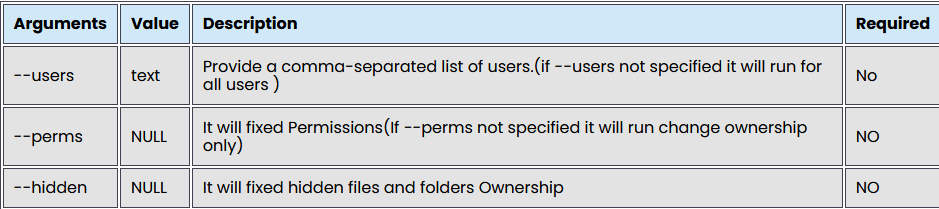
Parameters
Command
To fix Permissions and Ownership to all Users execute following command
webuzo --fix_user_dir --permsTo fix only Ownership to all Users execute following command
webuzo --fix_user_dirTo fix Permissions and Ownership for particular Users execute following command
webuzo --fix_user_dir --users=demo1,demo2 --permsTo fix Ownership of hidden files and folders for particular Users execute following command
webuzo --fix_user_dir --perms --hidden --users=vtest------------------------------------------------------------------------------------------------------------------------
Clear Email Queue
Description
This guide will show you how to clear Email Queue via Command Line.
The following CLI command is used to clear Email Queue of your users on your server.
Command
webuzo --delete_email_queue------------------------------------------------------------------------------------------------------------------------
Reset panel allowed ips
Description
This guide will show you how to Reset panel allowed IPs via Command Line.
The following CLI command is used to Reset panel allowed IPs of your server.
Command
webuzo --reset_panel_allowed_ips------------------------------------------------------------------------------------------------------------------------
Modify Multiple Accounts
Description
This guide will show you how you can modify multiple user accounts via the Command Line.
Command
To modify multiple accounts you can use below-mentioned command:
webuzo --mass_modify --users=USERNAME1,USERNAME2 --owner='Reseller/Owner' --start_date='2025-05-01T12:27' --theme='default' --locale='en' --plan='PLAN_NAME' --ip='IPV4' ipv6='IPV6'For e.g. to modify both IPv4 and IPv6:
webuzo --mass_modify --users=test2,test3 --ip=2.3.3.3 --ipv6=1111:1111:1111:1111:1111:1111:1111:1111For e.g. to modify IPv4 only:
webuzo --mass_modify --users=test2,test3 --ip=2.3.3.3------------------------------------------------------------------------------------------------------------------------
Install/Remove a System Application Using Cli
Install a System Application from Command Line
Webuzo allows you to install a system application from command line. Here is the guide:
Use the following command to install the system application.
You can use bellow 3 commands to install apps.
webuzo --installapp --app=gitwebuzo --a --app=gitwebuzo --app_install --app=gitIn the above command the first parameter should be
as this parameter will initiate the install function.
app=git - This is the application installation name for GitHub installation.
You can also pass soft id to install app
Note: Here soft id of GitHub is 67_1
webuzo --app_install --soft=67_1Remove a System Application from Command Line
Webuzo allows you to remove a system application from command line. Here is the guide:
Use the following command to remove the system application.
You can use bellow 3 commands to install apps.
webuzo --removeapp --app=gitwebuzo --ra --app=gitwebuzo --app_remove --app=gitIn the above command the first parameter should be
as this parameter will initiate the remove function.
app=git - This is the application installation name for GitHub installation.
You can also pass soft id to remove app
Note: Here soft id of GitHub is 67_1
webuzo --app_remove --soft=67_1